Introduction
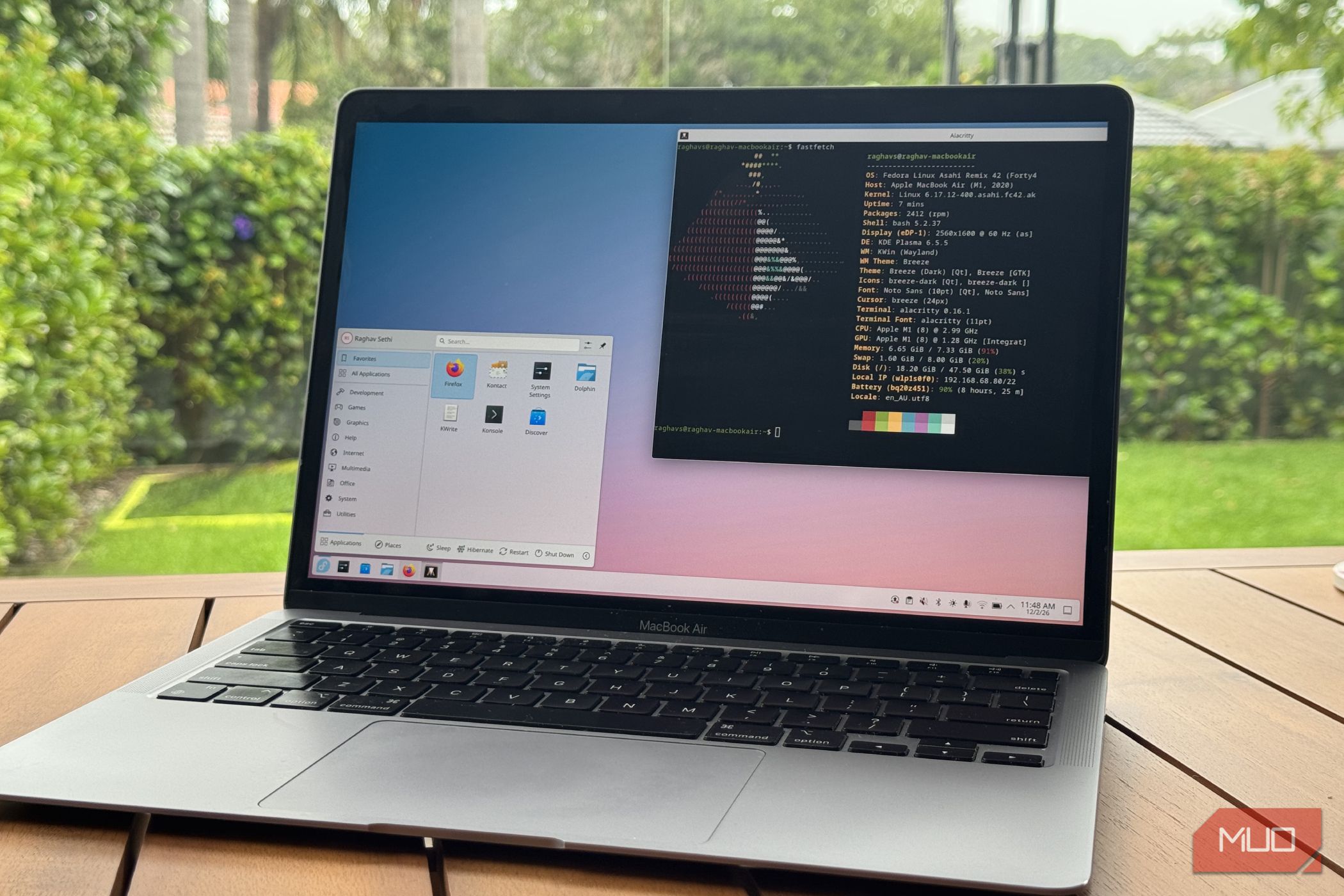
Switching from Windows to Linux can feel intimidating, especially when you depend on specific applications for your daily workflow. The fear isn't the operating system itself—it's losing access to the tools you rely on. But with the right free apps, the transition can be smoother than you'd expect. This guide walks you through the process of replacing your Windows apps with Linux alternatives, step by step.
What You Need
- A computer with at least 4GB RAM and 20GB free disk space
- A USB flash drive (8GB or larger) for installation
- Internet connection for downloading apps
- Patience and willingness to learn new tools
- Backup of important data
Step-by-Step Guide
Follow these steps to make the switch painless.
Step 1: Choose a Linux Distribution That Feels Familiar
Start by selecting a user-friendly distribution like Ubuntu, Linux Mint, or Pop!_OS. These offer a desktop environment similar to Windows, with a taskbar, start menu, and system tray. Download the ISO file from the official website.
Step 2: Create a Bootable USB Drive
Use tools like Rufus (on Windows) or BalenaEtcher (cross-platform) to write the ISO to your USB drive. Boot from the USB by changing the boot order in your BIOS/UEFI settings.
Step 3: Try Linux Before Installing
Most distros let you try before you install. Boot into the live environment and test your hardware—WiFi, sound, graphics. This ensures compatibility without touching your hard drive.
Step 4: Install Linux Alongside Windows (Dual Boot) or Replace It
During installation, choose "Install alongside Windows" for dual boot, or select "Erase disk and install" if you're ready to commit. Allocate at least 20GB for the system.
Step 5: Replace Essential Windows Apps with Linux Equivalents
Here's the core of the transition. Use the following free apps to cover your needs:
- Office Suite: Replace Microsoft Office with LibreOffice (documents, spreadsheets, presentations).
- Web Browser: Firefox or Chromium work exactly like on Windows.
- Media Player: Use VLC for videos and music.
- Image Editing: GIMP replaces Adobe Photoshop.
- PDF Reader: Okular or Evince for viewing PDFs.
- Email Client: Thunderbird handles email, contacts, and calendar.
- File Manager: Nemo or Dolphin (depending on your desktop) offer Windows-like navigation.
Step 6: Install Apps Using the Package Manager
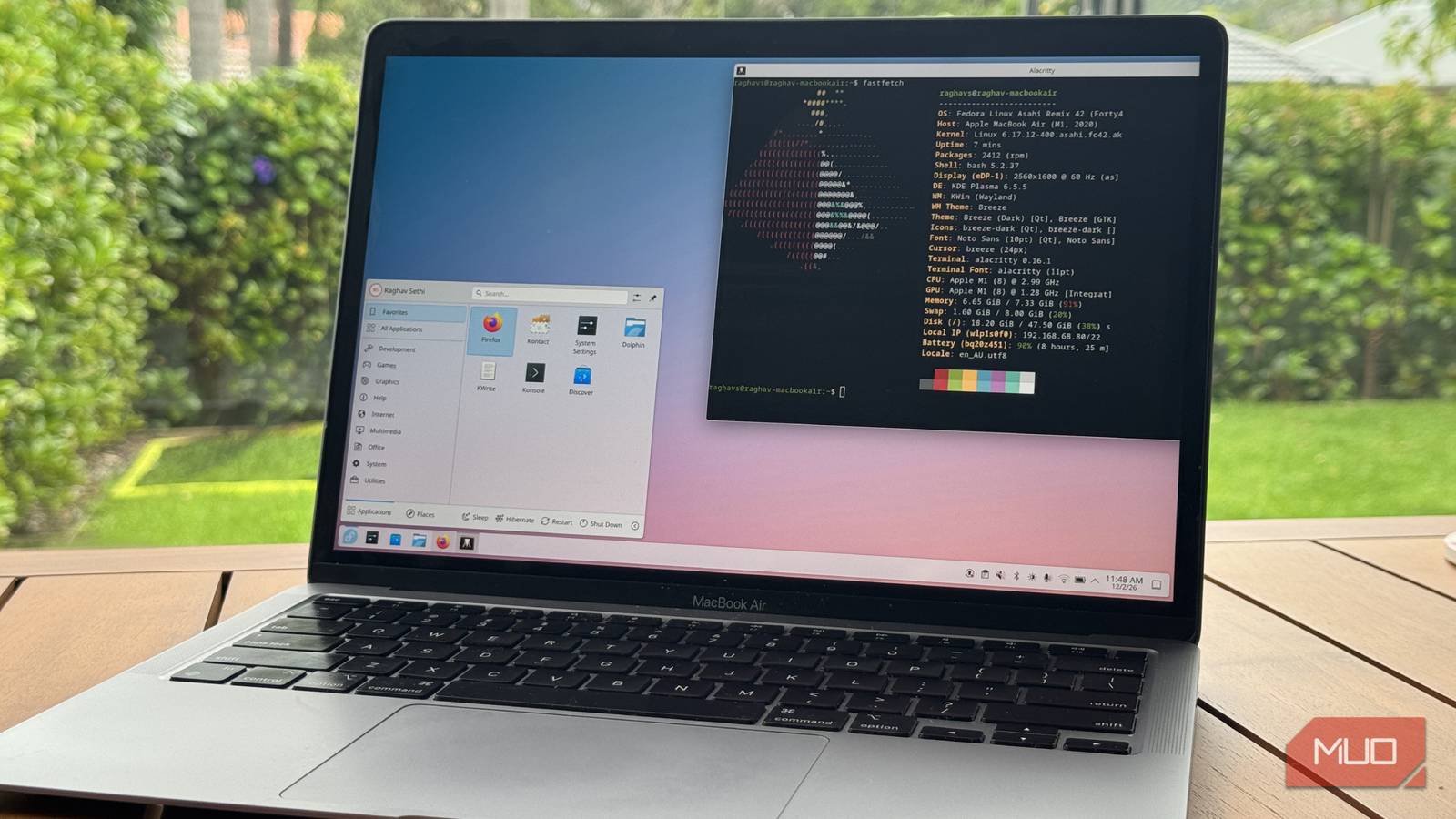
In Linux, you don't need to hunt for download links. Open the Software Center or use terminal commands. For Ubuntu, use sudo apt install [app-name]. For example: sudo apt install libreoffice.
Step 7: Set Up Cloud Storage and Sync
Use Nextcloud (self-hosted) or Google Drive via the browser. For Dropbox, install the official client from the website—works on Linux too.
Step 8: Learn the Keyboard Shortcuts and Workflow
Linux desktops have slight differences. Use Super key (Windows key) for the menu, Alt+Tab for switching windows, and Ctrl+Alt+T for terminal. Customize shortcuts in Settings.
Step 9: Access Windows-Only Apps When Necessary
If you absolutely need a Windows-only program, use Wine (a compatibility layer) or install a virtual machine with VirtualBox. For example, running older versions of Microsoft Office via Wine often works.
Tips for a Smooth Transition
- Start with dual boot to test Linux while keeping Windows as a backup.
- Join Linux communities like Reddit's r/linuxquestions or forums for your distro.
- Embrace the command line—it's powerful but not mandatory. Use GUI tools first.
- Back up your data before any installation.
- Be patient—you'll adapt faster than you think.