You've probably heard tech experts chant the 3-2-1 backup rule like a mantra. It's repeated so often that it's easy to tune out—like a digital version of 'eat your vegetables.' But there's a reason it's drilled into us: it works. Yet many people assume that tossing files into Google Drive constitutes a backup strategy. Spoiler: it doesn't. Below, we break down the essential questions about why cloud sync isn't the same as backup, and how to truly safeguard your data.
What exactly is the 3-2-1 backup rule and why is it the gold standard?
The 3-2-1 rule is a simple but powerful framework: keep three copies of your data, on two different types of media, with one copy stored off-site. For example, you might have your working files on your laptop (primary), a local external drive (second copy), and a cloud backup service (off-site). The beauty of this rule is its redundancy. If your laptop crashes, you have the external drive. If a fire destroys both, the cloud copy survives. It's the gold standard because it covers almost every disaster scenario—hardware failure, theft, natural disaster—without relying on any single point of failure.
Why can't I rely on Google Drive alone as my backup solution?
Google Drive is a sync service, not a true backup. When you delete a file from your computer, it's deleted from Drive (and vice versa) unless you catch it within the 30-day trash window. Ransomware? If it encrypts your synced folder, those encrypted files sync to Drive, corrupting your 'backup.' Accidental edits? They propagate instantly. Moreover, Google Drive lacks versioning beyond 30 days (for most users) and doesn't let you schedule incremental backups or restore to a point in time. It's like having a mirror image of your house—if the house burns, the mirror burns too. True backup keeps a separate, immutable copy.
What's the difference between file syncing and true backup?
File syncing (like Dropbox, OneDrive, or Google Drive) creates a real-time or near-real-time copy of your files across devices. Its goal is accessibility—ensuring you have the latest version everywhere. Backup, however, is about recovery. A backup solution creates a snapshot of your data at a specific point in time, stores it independently, and allows you to restore from that snapshot, even if the original data is gone or corrupted. Key differences: backups are not automatically bidirectional (changes on the backup don't affect the original), they keep multiple historical versions, and they're designed to be disaster-proof. Syncing is convenience; backup is insurance.
Are cloud storage services like Google Drive vulnerable to data loss?
Absolutely. While Google has robust infrastructure, data loss can still happen. User error is the most common cause: accidental deletion, overwriting, or sharing permissions gone wrong. Malware and ransomware can target synced folders. Account hijacking can lead to mass deletion. Even Google itself has had outages—and though rare, bugs have caused data loss (e.g., Google Docs glitches). Additionally, if you're only using the free tier, you have limited recovery options. A platform's uptime guarantee doesn't cover 'I accidentally deleted everything.' That's why the 3-2-1 rule emphasizes multiple, independent copies, not just a single cloud provider.

How do I implement a proper 3-2-1 strategy using both cloud and local storage?
Start with your working data on your computer (copy 1). Then add a local backup to an external drive or NAS (copy 2, different media). Finally, use a dedicated backup service—like Backblaze, IDrive, or even a second cloud account with automated backup software—for off-site storage (copy 3). Do not use Google Drive sync as the off-site copy; instead, use a tool that creates versioned, point-in-time backups. For example, Veeam or Acronis can back up selected folders to both a local drive and a cloud storage bucket. Ensure the cloud backup is not synced to your working files. Schedule daily or weekly backups, and test restores regularly to confirm you can retrieve your data.
What common mistakes do people make when using Google Drive for backup?
The biggest mistake is treating sync as backup. Other errors include: only having one copy (the cloud), ignoring the 30-day trash limit, not checking for ransomware cross-infection, and failing to back up files stored only in Drive (like shared documents you didn't download). Many also forget that Google Drive isn't meant for large structured backups—it has file size limits and can slow down with many small files. Finally, people skip testing. A backup isn't a backup until you've proved you can restore from it. Without testing, you might discover too late that your 'backup' is corrupt or incomplete.
What steps should I take today to protect my data beyond Google Drive?
First, stop using Google Drive as your sole backup. Instead, think of it as a sync tool. Then, implement a simple 3-2-1 system:
- Identify your critical files (documents, photos, projects).
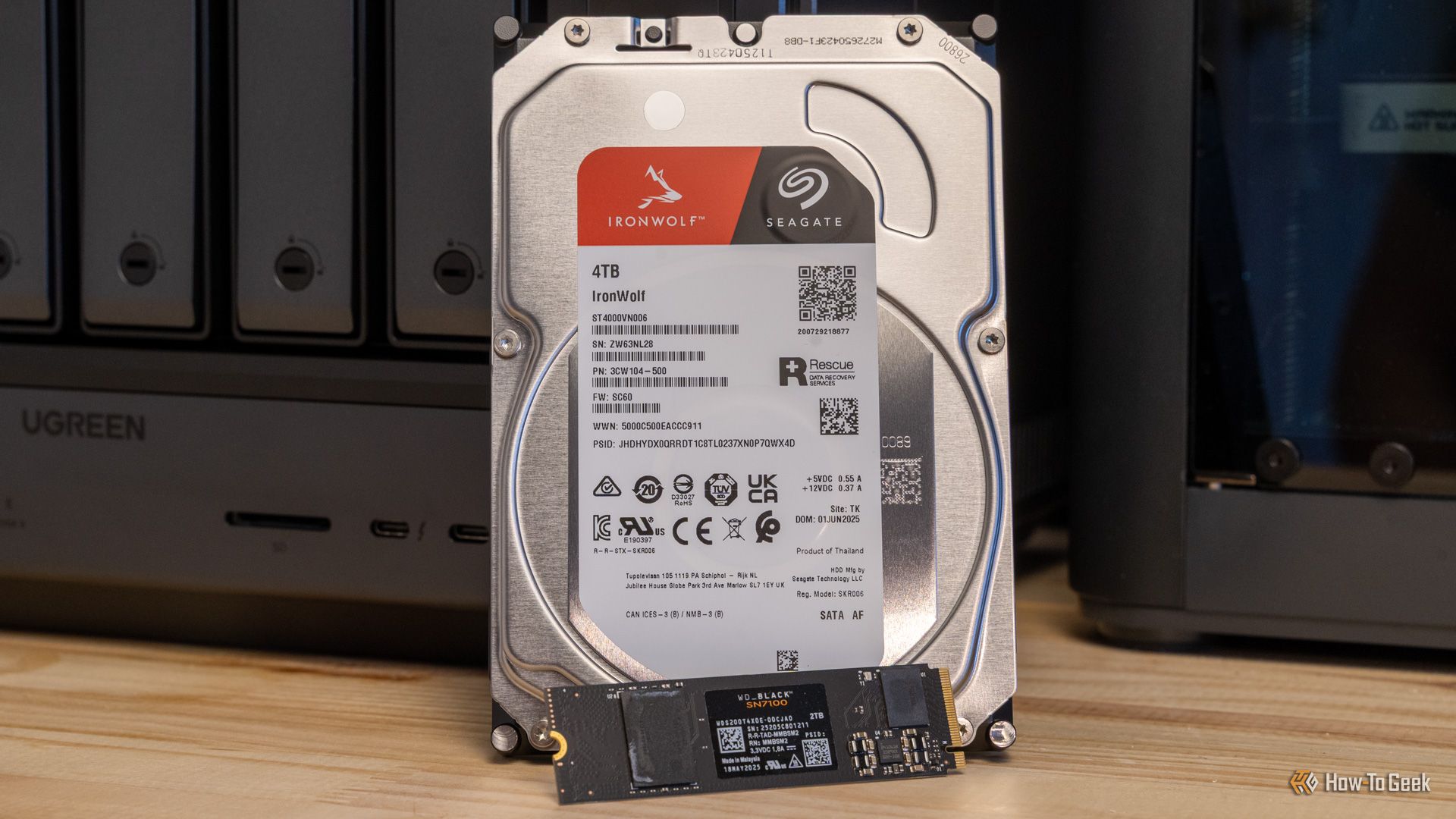
- Copy them to an external drive (e.g., a 1TB USB hard drive).
- Sign up for a dedicated backup service (like Backblaze or CrashPlan) that can back up your entire computer or selected folders automatically.
- Set up versioning—keep at least 30 days of history.
- Test a restore: try to recover a few files from your backup.